Gallery
The Gallery tab shows every exported image of the project as a grid of cards.
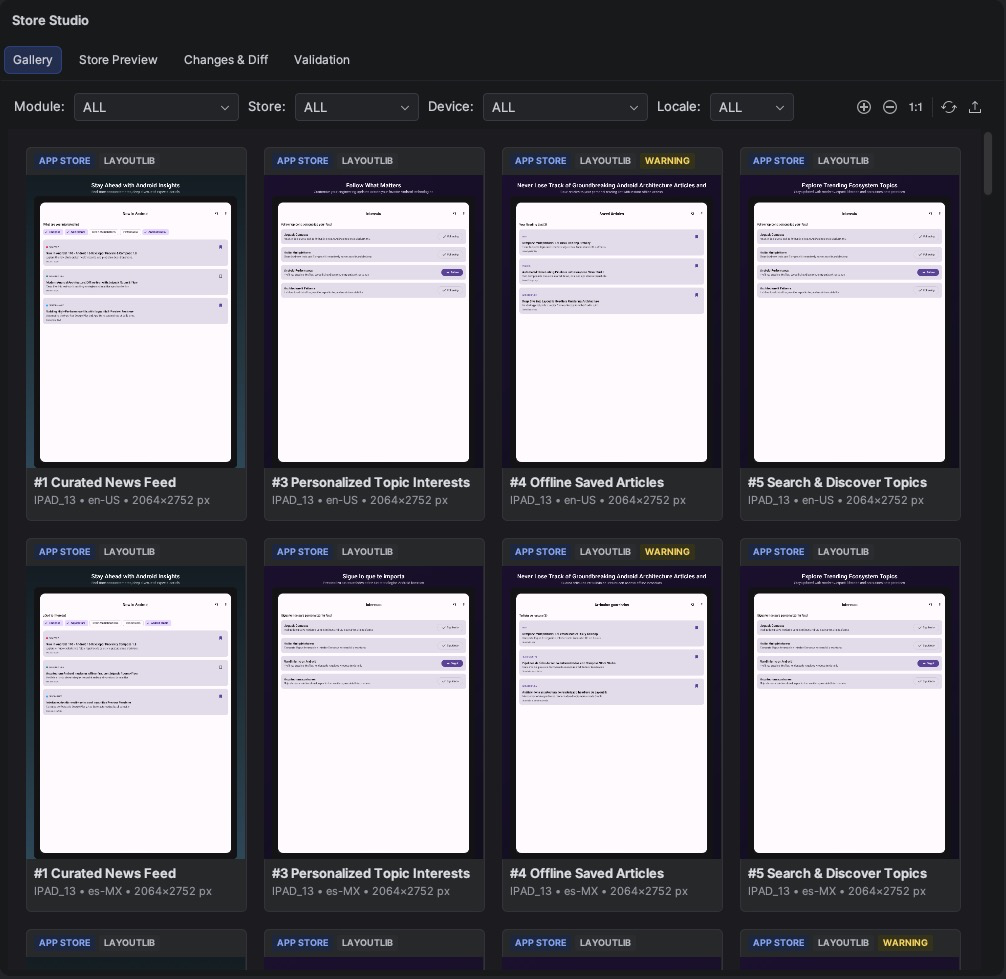
Filters
Use the filters at the top to narrow the grid:
- Module, for multi-module projects;
- Store (Google Play, App Store or both; the default is set in Settings);
- Device (phone, 7-inch tablet, 10-inch tablet, iPhone, iPad, Wear OS, feature graphic);
- Locale.
Cards and badges
Each card shows the image, its name and position in the carousel, plus optional badges:
| Badge | Meaning |
|---|---|
Device slot (PHONE, TABLET_7, IPAD_13…) |
Which store slot the image is for. |
LAYOUTLIB / ROBOLECTRIC |
Which engine rendered it. ROBOLECTRIC means the fallback was needed; see Rendering. |
ERROR / WARNING |
The image has validation findings. |
Each badge type can be turned off in Settings.
Actions
- Double-click a card to open the
@StoreScreenshotcomposable that produced it. - Right-click a card for Jump to Composable Source, Open Image in Editor, Copy Image Path and Copy Slot Key.
When a screenshot contains text that was cut off, the card shows a text-overflow warning, typically caused by a long translation.